 overlay
From download to live: a reliable StreamElements and OBS workflow
A practical installation checklist, a repeatable test routine, and a way to isolate blank-source problems without rebuilding your entire scene.
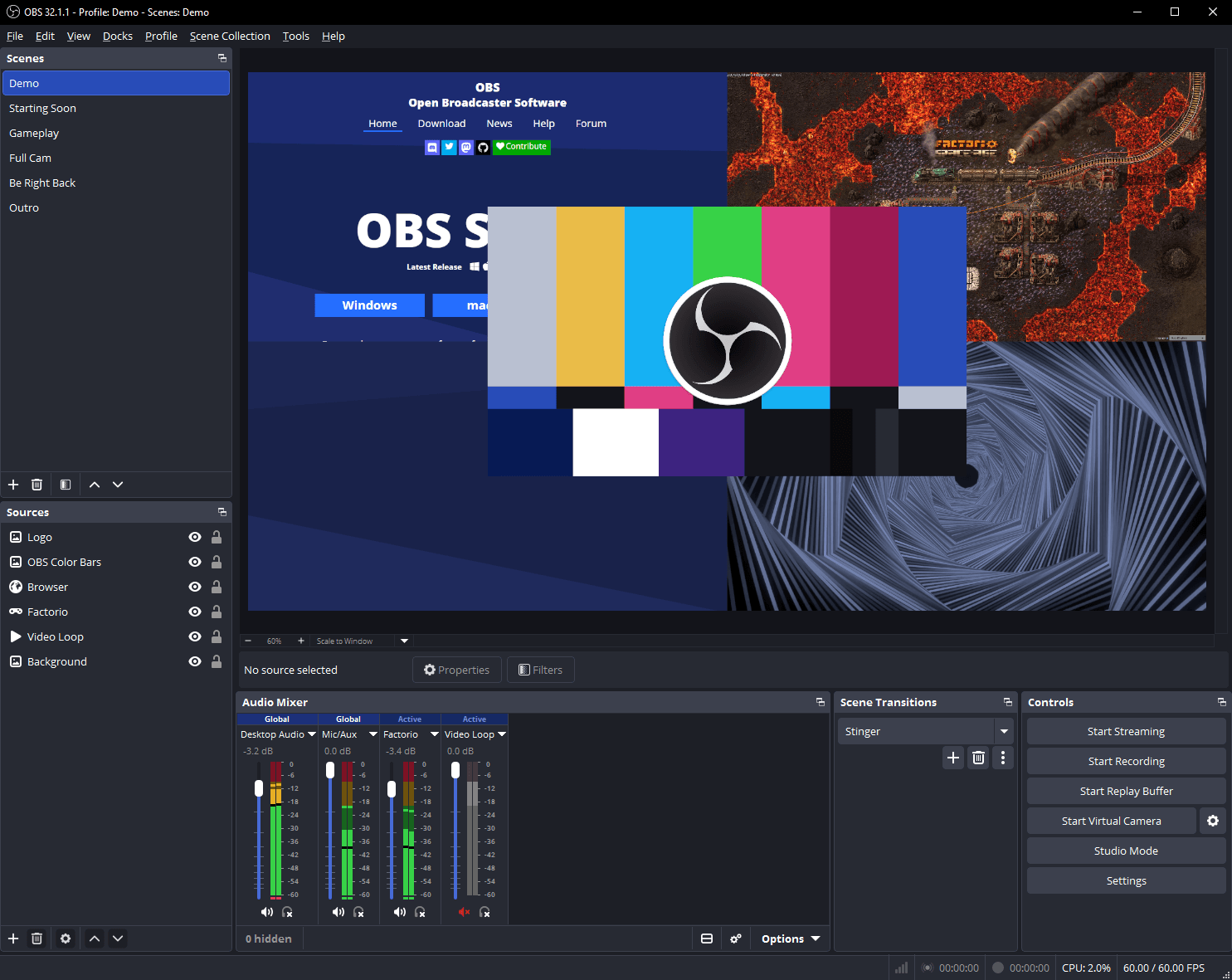
A widget is only ready when it works in the scene your audience actually sees. An animation running in a browser preview is a useful first check, but it does not prove that the right channel is connected, that OBS can load the source, or that a real event will reach it. Use this workflow to separate installation, rendering, and event delivery.
1. Keep an untouched copy of the package
Download your files from the confirmed purchase receipt or the free starter page. Unzip the archive and keep one original copy before changing anything. Read the included setup notes: some packages provide a StreamElements import link, while others contain HTML, CSS, JavaScript, and a Fields configuration for manual installation. Do not assume every product includes both methods.
Choose the channel you intend to use before importing. If you manage several accounts, check the channel shown in the StreamElements dashboard. Installing into the wrong account can produce a perfectly rendered widget that never receives your channel's events.
2. Install, then change one setting at a time
For an import link, open it from your receipt and save the resulting overlay in your own account. For a manual package, create an overlay in StreamElements, add a Custom Widget, and paste each file into its matching editor tab. Put HTML in HTML, CSS in CSS, JavaScript in JS, and the supplied field configuration in Fields. Save before testing.
Begin with the default colors, duration, and goal values. Trigger a sample event in the StreamElements emulator first. Once the default version works, change one field, save, and test again. This makes it much easier to identify which edit caused a problem. An emulator proves the animation can render; it does not prove that a real platform event is available on your connected account.
3. Match the Browser Source to the overlay canvas
Copy the overlay URL, not the dashboard editor URL. In OBS, add a Browser Source and enter that URL. Match its width and height to the StreamElements overlay canvas; a 1920 by 1080 overlay should start with a 1920 by 1080 Browser Source, even if your final stream is scaled to a smaller output resolution. Keep the widget background transparent unless its design intentionally includes a background.
Check the source's position in the scene. A source underneath a full-screen game capture can be working correctly while remaining invisible. Use the OBS preview to place the widget, then lock the source so you do not move it accidentally. Test the scene you will broadcast, not only a separate setup scene.
4. Test sound, long names, and repeated events
- Trigger one event and check that the text, animation, and sound appear together.
- Try a long display name and a large goal value. Watch for clipping and text crossing into gameplay.
- Send several test events close together. Confirm that the queue behaves sensibly and that sounds do not become overwhelming.
- Record a short local clip, then listen to it. A sound audible on your headphones may still be routed differently in the recording or stream.
- Switch away from the scene and back. Check whether the Browser Source's shutdown and refresh settings match the behavior you want.
Avoid playing a source through multiple audio paths unless you intentionally need that routing. If audio is duplicated, inspect monitoring and the source's mixer routing rather than simply reducing its volume.
5. Diagnose the failing layer
If nothing appears in StreamElements, return to the package tabs and field values. If it works there but not in OBS, check the URL, canvas dimensions, scene visibility, network access, and Browser Source cache. Refresh the cache after confirming those settings; repeatedly refreshing a wrong URL will not fix it.
If test events work but real events do not, check your platform connection and the event type. A browser widget can render on different platforms without every event being supported everywhere. Twitch Bits and subscription tiers, for example, are not universal platform events. Consult the product description and your connected service's current event support.
A useful support request saves a round trip
Send [email protected] the widget name, order reference if applicable, OBS version, the event you tested, and the point where the workflow stops working. Include a screenshot with private details removed. Do not publish your overlay URL or send passwords: URLs can contain private channel tokens. A clear description such as 'the emulator works in StreamElements but the source stays blank in OBS' is more useful than 'it is broken'.
Keep a pre-stream checklist
Save the overlay, verify the active scene, trigger a test, listen to a local recording, and check that your backup files are still available. After a major OBS, browser, or platform update, repeat the test before your next broadcast. A two-minute check is easier to manage than troubleshooting during a live moment.